


If you still have not appreciated the convenience of using the Apple’s program, you are free to download iTunes now. ITunes program makes it possible to shorten songs for subsequently turning them into ringtones for a cell phone. It is easy to Make Ringtones on iTunes – once you know how.
To do this, it’s important to convert any song to the m4r extension and then sync it with a phone. Of course, the methods may vary, depending on the operating system installed on a user’s computer.
Creating iTunes Ringtones on a Mac
To Make Ringtones on iTunes, first, pick up the song to use as a ringtone. Then, select a 30-second part of the composition, which will constitute the future ringtone. If you still have not loaded your song into iTunes, you are encouraged to do it.
Please note that the musical composition bought from iTunes store are not subject to turning into ringtones, unless they are converted to a different, unprotected, format.
Highlight the song intended for use as a ringtone in iTunes.

Next, right-click on it and select “Get Info” from the drop down list
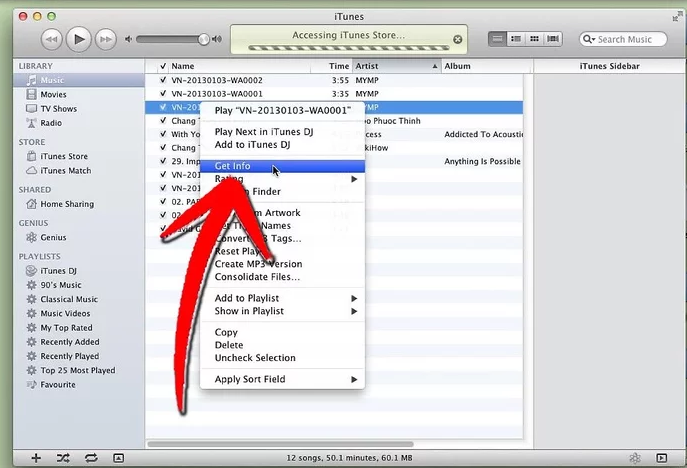
The pop-up dialog box should appear on the screen afterwards. Use the mouse to click on the “Options” tab in it.
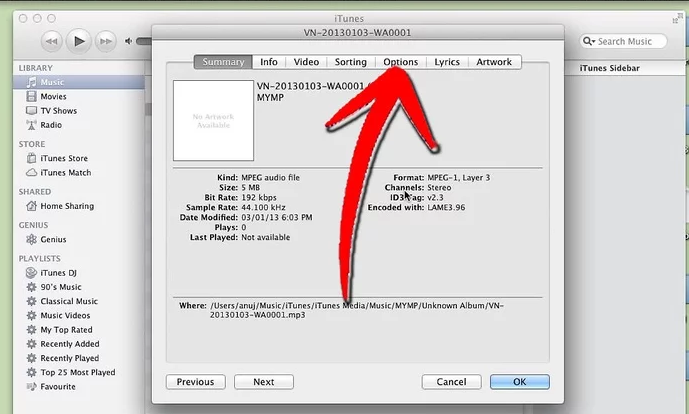
Then, go to the “Start Time” and “Stop Time” boxes and set the chosen times
for a new ringtone.
Remember that the total time of the ringtone should not exceed 30 seconds.
If desired, the ringtone can start from the beginning of the song; there is no need to type in the start time.
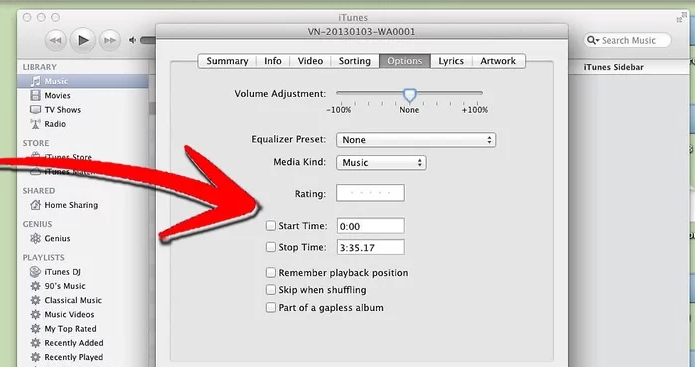
Once done, click OK.
After that, highlight the chosen song once again and choose “Select AAC Version” from the drop down list.
The two versions of the selected song should be visible, with the former having the full song time and the latter being a clipped version.

Use the mouse to right-click on the clipped one and choose “Show in Finder.”
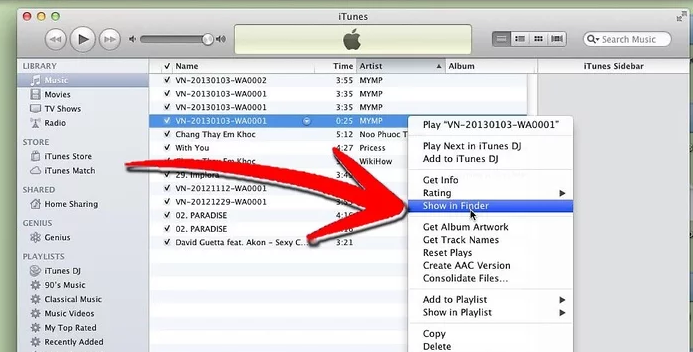
After that, highlight the song in the finder window. It is necessary to right-click and select the “Get Info” option and make sure that the duration is appropriate.
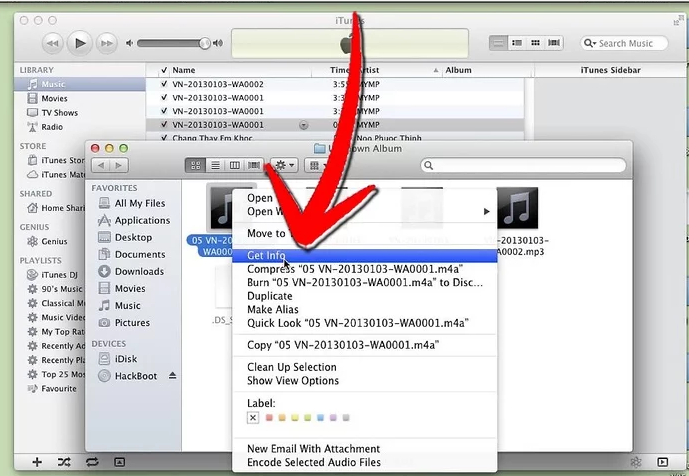
Next, change the new file’s extension from .m4a to .m4r. Doing so changes the default iTunes extension the song had. Then, click “Enter.”

After the confirmation box pops up, press the “m4r” button. Don’t close the finder window yet.
Get back to your iTunes program. Click on the “AAC” version. Scroll and then choose “Delete.”

When the confirmation box appears, click on “Delete Song.” As soon as the second box pops up, choose “Keep File.”

Get back to the finder window and double-click on the clipped version of the file. This will add it to iTunes.
After that, the chosen version should automatically appear in the iTunes library under “Tones.”

When you plug in your phone, don’t forget to get the new tone into your device folder.
Creating iTunes Ringtones on a PC
Eager to make a ringtone on a Windows OS? Believe us, it is not a problem either.
First, you need to choose a song in iTunes you want to make your future ringtone. You should make sure that the chosen portion of your song does not exceed 30 seconds.
After that, highlight your musical composition you want to use in iTunes.
Right-click on it, then scroll down and select “Get Info.”
When the dialog box appears, choose the “Options” tab.
Just like in Macs’ case, you will need to check the “Start Time” and “Stop Time” boxes and click OK after finishing setting the necessary time frames.
Then, you should highlight and right-click the song in iTunes. You’ll need to select “Create AAC Version” after that.
You will see two song versions. They will appear as a full version and the clipped one in the iTunes album.
Go to Start Menu and open your Control Panel. Select “Large Icons.”
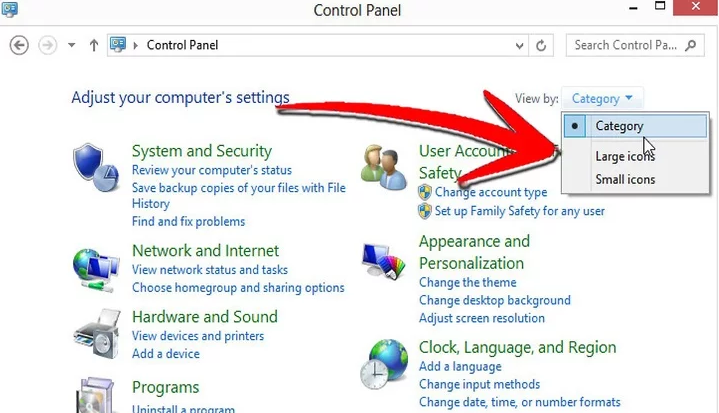
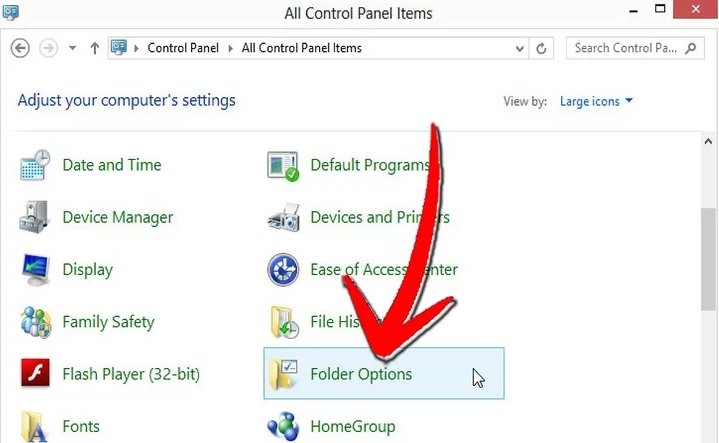
Choose “Folder Options” and select “View” tab.
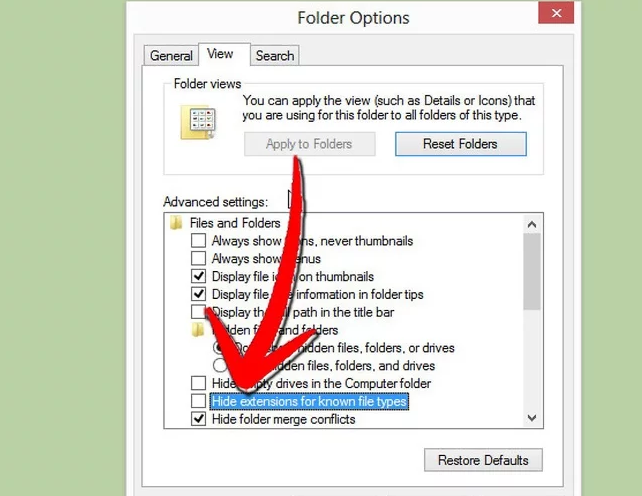
Then, uncheck the “Hide extension for known file types” option and press OK.
Furthermore, you will need to highlight the clipped version of the song. Use your mouse to click on “Show in Windows Explorer.”

Once you are ready, click your file after it has been opened in Internet Explorer.
Finally, it will be necessary to change the file extension. Rename the file with the extension .m4r and press “Enter.”

Don’t forget to double-click on the song for it to open in iTunes.
Get to iTunes library, namely, its “Tones” section, which should contain the new ringtone.

You are welcome to plug in your phone now and sync the tones in iTunes library. Now you know how to Make Ringtones on iTunes, make them for your friends and family.